


Frontline task-device planning for Hong Kong retail operations
Retail Task Management Hardware for Frontline Work
Give store teams a practical mobile work point for receiving, acknowledging, performing and closing assigned work. Easy Scan helps retailers assess mobile computers, rugged tablets, accessories, charging and deployment support; task creation, priority, user rights, evidence and completion rules remain with the selected work application.
Overview
Carry approved work from assignment to verified closeout
Give store teams a mobile work point for receiving, acknowledging, performing and closing assigned work. This page follows the physical checkpoints, records and hand-offs that should be understood before product categories are narrowed or a deployment is planned.
The primary equipment review covers Mobile computers, Rugged tablets. Easy Scan can help match these categories to the site, workload, identification samples, connectivity, power and support route; exact configuration remains subject to application and compatibility checks.
- Operating scope:Separate the mobile work point from the task-management system
- Critical hand-off:Define the work, owner, place and required timing before deployment
- Equipment bundle:Review Mobile computers, Rugged tablets by work point instead of beginning with individual models.
- Deployment evidence:Use representative users, items, locations and exceptions during the site walkthrough.
Task scope and application boundary
Separate the mobile work point from the task-management system
Business instruction
The process owner defines what work is required and why. Review this step with the employees who perform and supervise it. Confirm that the instruction, status choices and escalation wording are understood consistently across the intended shift or work area.
Task application
The selected platform creates, assigns, prioritises and records the work. The completed record should show the next user what was checked, what changed and what still requires attention, so the expected hand-off is clear at the real work point.
Mobile work point
The device displays approved steps and captures supported input. Use the site conditions required at this checkpoint to confirm placement, cable or wireless reach, charging and safe access for support. Record constraints before selecting a product configuration or planning installation.
Operational review
Authorised users review exceptions, completion and follow-up. Keep the physical item, its identification and the resulting status connected throughout the process. If one element is missing, follow the page's exception route before the workflow continues.
Task definition
Define the work, owner, place and required timing before deployment
- Task identity:Use a clear reference tied to the current approved task version.
- Responsible role:Assign a person, team or queue through the selected application.
- Work location:Identify the store, zone, fixture, stockroom or service point.
- Timing:Display only the deadline, window or sequence released by the process owner.
Release, priority and dependency
Keep sequencing decisions in the approved task process
A mobile device can show a priority or dependency; it does not decide which task is more important. Define how urgent work is released, what must happen first, who may override the sequence and how conflicting instructions are resolved.
Released work
Show only tasks approved for the current team and shift. Review this step with the employees who perform and supervise it. Confirm that the instruction, status choices and escalation wording are understood consistently across the intended shift or work area.
Dependency
Hold work until the required earlier action or condition is confirmed. The completed record should show the next user what was checked, what changed and what still requires attention, so the expected hand-off is clear at the real work point.
Priority conflict
Send competing instructions to an authorised owner. Turn the responsibility required at this checkpoint into a clear instruction for the relevant role. The user should know the required input, permitted decision and named escalation route before this task is added to daily work.
Role, zone and device assignment
Match each task to an authorised worker and usable device
- Role:Confirm the user may see and perform the assigned task.
- Zone:Keep work tied to the permitted store or operational area.
- Device identity:Know which shared or assigned device is in use.
- Readiness:Check application access, battery, network and accessories before work starts.
Acknowledge, start, pause and resume
Give every state a clear operational meaning
Acknowledged
The worker has received the current task, not necessarily started it. The completed record should show the next user what was checked, what changed and what still requires attention, so the expected hand-off is clear at the real work point.
In progress
The worker has begun the authorised steps at the work point. The completed record should show the next user what was checked, what changed and what still requires attention, so the expected hand-off is clear at the real work point.
Paused
Record the approved reason, current location and next owner where required. Use the item, location, unit and quantity rules required at this checkpoint to prepare the scan or entry screen. When the physical result differs from the expected record, preserve the discrepancy for review instead of forcing a match.
Resumed
Show the current task version and retained context before work continues. Test this step with representative items and records from the required workflow. Confirm what the operator can decide here and which condition must be handed to an authorised reviewer.
Instructions, scans and input
Capture only the evidence required to complete the physical step
Map each instruction to the item, location, asset, display or customer-service point involved. Define which barcode scan, quantity, checklist, note, time or permitted image is required and how the selected application validates it.
Test screen visibility, gloves, carrying, shelf height, customer traffic, scan angle and one-handed use in the real work environment.

Exceptions, blockers and escalation
Do not turn incomplete work into a false completion
- Item or location mismatch:Record the approved code and pause the affected step.
- Access or safety blocker:Follow the site’s authorised operational procedure.
- Device or network issue:Keep work status clear while support or an alternate route is used.
- Escalation:Send the task and relevant context to the responsible owner.
Hand-off and reassignment
Keep the current owner and task version visible through every transfer
Handoff request
State why the work moves and what remains incomplete. The hand-off should provide a status that the next work area can act on. If the record and physical condition do not agree, preserve the difference for review rather than replacing the earlier status.
Receiving owner
Require acknowledgement through the selected task process. Review this step with the employees who perform and supervise it. Confirm that the instruction, status choices and escalation wording are understood consistently across the intended shift or work area.
Current context
Carry forward relevant scans, notes, location and exception status. Use the item, location, unit and quantity rules required at this checkpoint to prepare the scan or entry screen. When the physical result differs from the expected record, preserve the discrepancy for review instead of forcing a match.
Old assignment
Remove conflicting ownership after the approved transfer. The hand-off should provide a status that the next work area can act on. If the record and physical condition do not agree, preserve the difference for review rather than replacing the earlier status.
Completion, review and reopen
Define what closes the task and who may reopen it
- Required steps:Confirm the application has the approved inputs and states.
- Completion event:Use the selected process to mark the current task version complete.
- Review:Route tasks requiring approval or quality checking to the correct owner.
- Reopen:Record the reason, new owner and current instructions before work resumes.
Frontline task product categories
Choose the screen and carrying format around the work
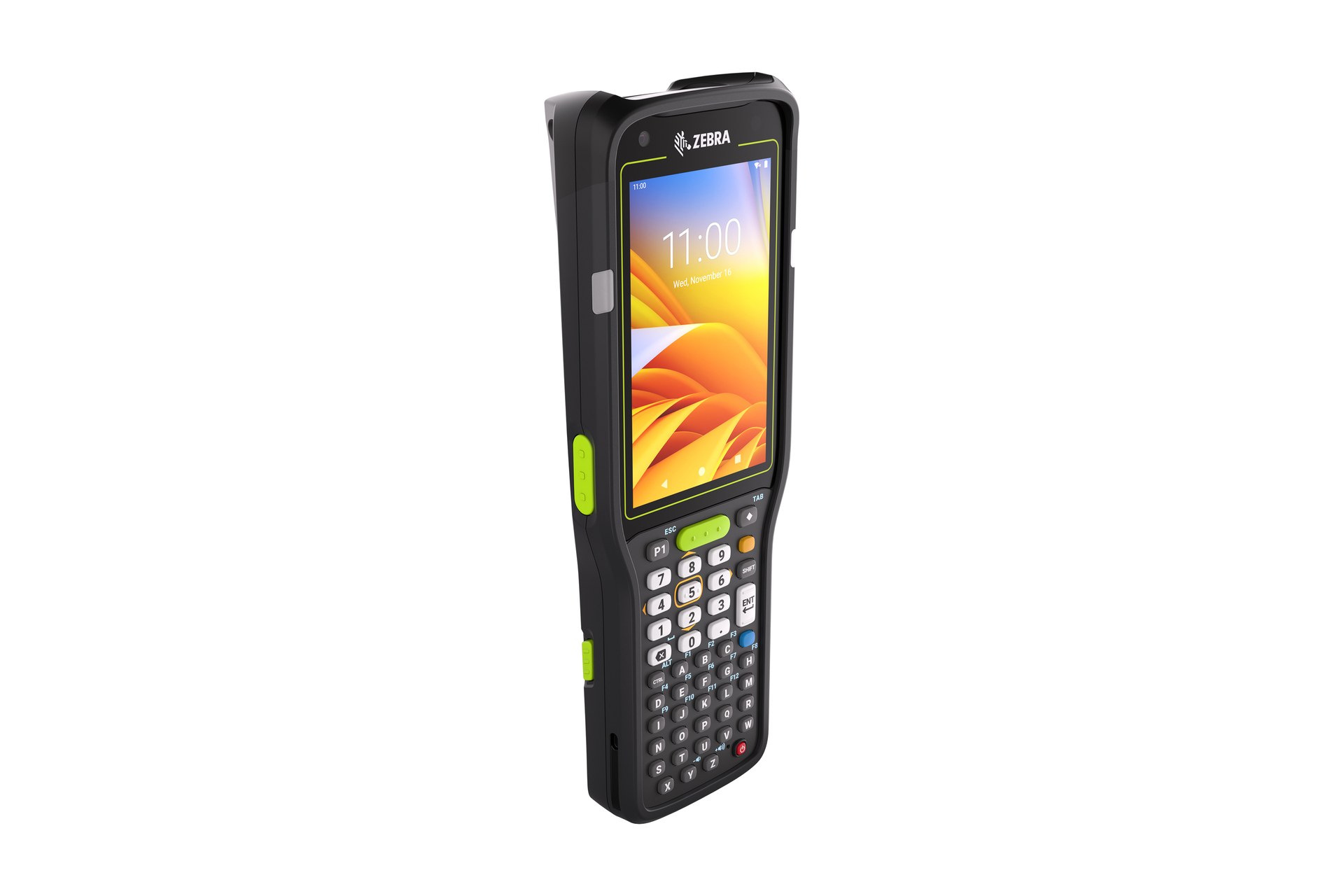
Mobile Computers
For supported mobile instructions, scanning and status input across store work points. Build the trial around the on-screen task and data entry required at this checkpoint. Check scanning, keypad or touch input, carrying method, charging and required connectivity as one mobile workflow.

Rugged Tablets
For supported work that benefits from a larger display, form or shared visual review. Use the required task to confirm the required screen area, input method and viewing position. Carrying, mounting, scanning, power and connectivity should be reviewed in the same trial rather than as separate accessories.
Device, carrying and charging plan
Build a complete task kit for each role and shift
- Screen and input:Review text, buttons, forms, scanning and any supported keyboard need.
- Carry and protection:Match case, strap, holster, hand strap or cart use to the work.
- Charging:Plan approved chargers, locations, cable control and shift exchange.
- Spare route:Define how a replacement device receives the current user and task context.
Connectivity and sync boundary
Test task access where staff actually walk and work
Coverage map
Test sales floor, stockroom, loading area and service points. Test this checkpoint with representative items and locations, including duplicate, missing or unreadable identification where relevant. The next action should follow the required exception path and keep the original count visible.
Roaming
Check supported movement between network areas. Use the site conditions required at this checkpoint to confirm placement, cable or wireless reach, charging and safe access for support. Record constraints before selecting a product configuration or planning installation.
Offline boundary
Document what the selected application permits without a connection. Keep the physical item, its identification and the resulting status connected throughout the process. If one element is missing, follow the page's exception route before the workflow continues.
Sync conflict
Keep resolution and authoritative status with the application owner. The hand-off should provide a status that the next work area can act on. If the record and physical condition do not agree, preserve the difference for review rather than replacing the earlier status.
Identity, permissions and shared-device close
Prevent one worker’s tasks and access from carrying into the next shift
- Sign in:Use the selected identity and approved authentication method.
- Least access:Show only tasks, locations and data needed for the role.
- Sign out:End the session and clear task access from the shared device.
- Return:Inspect, clean, charge and record the device before reassignment.
Application and management validation
Verify the complete task platform before deployment
Confirm the selected task application, identity service, device operating environment, network, accessories and management method as one supported configuration. Hardware alone does not provide assignment, priority, evidence, escalation, offline or device-management capability.
Application owner
Defines task fields, states, rules and authorised integrations. Turn the responsibility required at this checkpoint into a clear instruction for the relevant role. The user should know the required input, permitted decision and named escalation route before this task is added to daily work.
Identity owner
Defines users, roles, authentication and access review. Review this step with the employees who perform and supervise it. Confirm that the instruction, status choices and escalation wording are understood consistently across the intended shift or work area.
Device owner
Defines configuration, updates, support, repair and retirement. Review this step with the employees who perform and supervise it. Confirm that the instruction, status choices and escalation wording are understood consistently across the intended shift or work area.
Related store workflows
Connect tasks to the frontline work they represent

Communication and Collaboration
Plan the communication work point around approved platforms and roles. Keep the physical item, its identification and the resulting status connected throughout the process. If one element is missing, follow the page's exception route before the workflow continues.

Merchandising
Define shelf, price, display and exception checks. The hand-off should provide a status that the next work area can act on. If the record and physical condition do not agree, preserve the difference for review rather than replacing the earlier status.

Retail Replenishment
Connect assigned work to item, source and destination checks. Test this step with representative items and records from the required workflow. Confirm what the operator can decide here and which condition must be handed to an authorised reviewer.

Workforce Management
Plan device access, shift collection, shared use and return. The hand-off should provide a status that the next work area can act on. If the record and physical condition do not agree, preserve the difference for review rather than replacing the earlier status.
Site task walkthrough
Walk one task from release to close in the real store
- Use real roles:Test authorised assignment, login, acknowledgement and hand-off.
- Use real work points:Follow the task through the sales floor, stockroom and service area.
- Use real inputs:Test scans, forms, notes and any approved evidence with representative items.
- Trace exceptions:Walk blockers, pauses, reassignment, rejected records and reopen routes.
Frequently asked questions
Retail task management hardware planning questions
Does the hardware create and prioritise retail tasks?
No. The selected task application and process owner create, assign, prioritise and close work. Hardware provides the supported frontline access point.
Which product categories should we review?
Review mobile computers for scanning and compact mobile work, and rugged tablets where a larger supported display or form is useful. Confirm the complete kit through site testing.
Can one device profile cover every role?
Not automatically. Screen, input, carrying, charging, accessories, network and user-access needs can vary by role and work point.
What should happen when a task cannot be completed?
Use an approved exception reason, retain the current context and assign a responsible follow-up route. Do not force the task into a completed state.
Does task hardware need an ERP connection?
No. Frontline task hardware can work with the selected task, identity, network and device-management environment. Confirm a separate system link only when a genuine transaction requires it.
What should we prepare for an Easy Scan review?
Prepare representative tasks, roles, locations, scans, forms, exceptions, devices, accessories, charging, network conditions and the selected application environment.
Review your frontline task work points with Easy Scan
Share representative tasks, user roles, store locations, devices, accessories, application requirements and common exceptions. We can then discuss suitable hardware categories and deployment checks.