
Retail Barcode Scanner Selection
How Hong Kong Retail Stores Should Choose Barcode Scanners for POS, QR Codes and Stocktaking
A retail barcode scanner should be selected around the workflow, not only around whether it can read a barcode. POS checkout, mobile QR codes, e-coupons, membership IDs, shelf replenishment, back-room receiving and stocktaking all place different demands on scan performance, connection method, durability and system input. This guide helps Hong Kong retailers separate the use cases before comparing 1D, 2D, corded, wireless, presentation scanners and mobile computers.

Checkout counter
Fast and stable input
POS counters need fast, repeatable scanning without staff constantly changing the angle. Confirm barcode types, scan distance, hands-free needs and POS input behaviour before choosing.

Mobile screens
QR codes, membership IDs and coupons
Screen brightness, reflection, screenshot quality and code size affect read performance. If the workflow involves phone screens, do not test only with printed barcodes.

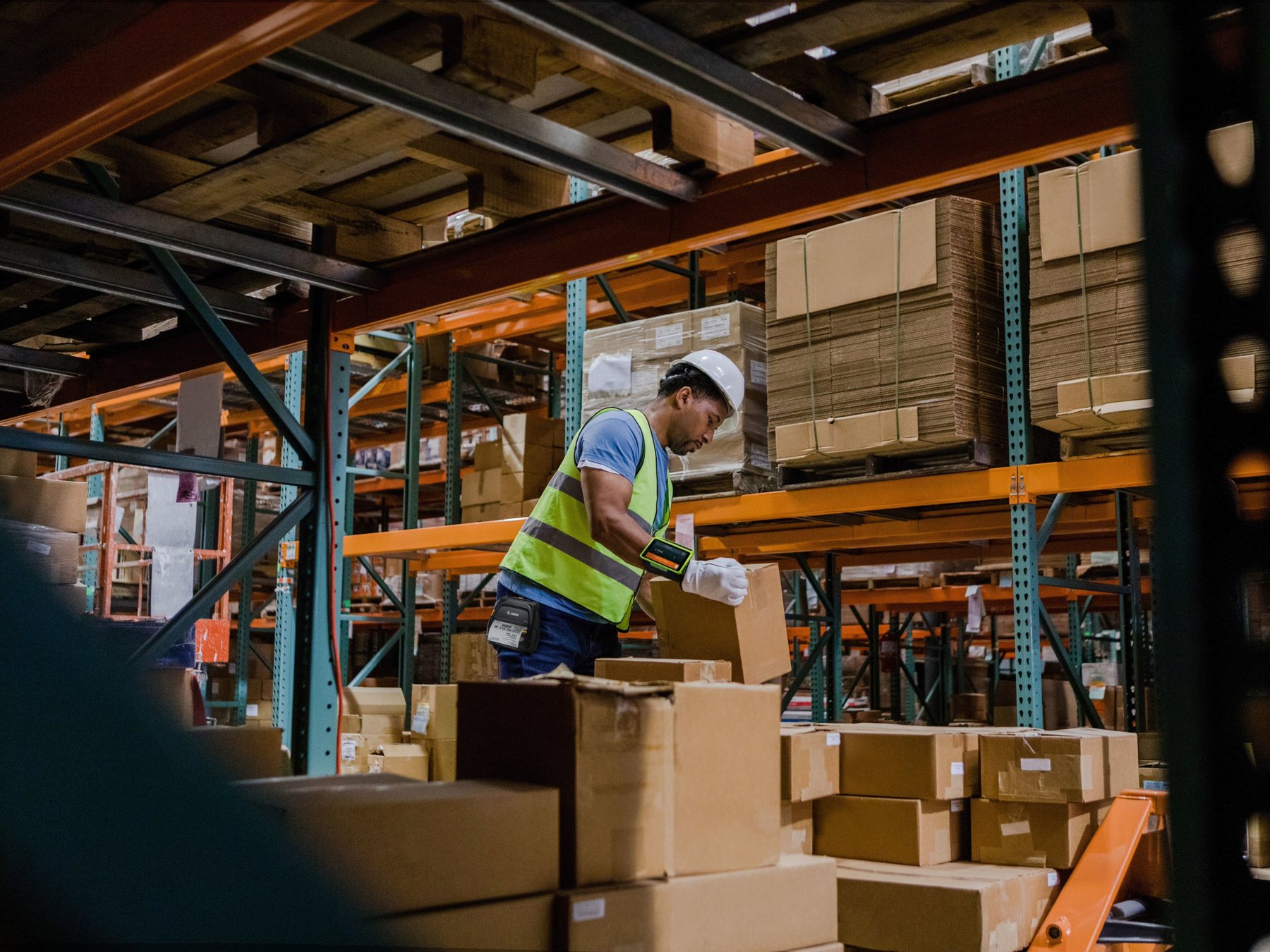
Shelves and back room
Work beyond scanning
If staff need to enter quantities, check stock, take photos, select statuses or connect to WMS / ERP after scanning, a mobile computer may fit better than a scanner alone.
Step one
Separate retail scanning into three task groups
One store may need checkout scanning, mobile-code scanning and inventory scanning. They may all look like barcode input, but the selection criteria are different.
| Task | Common location | Selection focus | Common direction |
|---|---|---|---|
| POS product scanning | Checkout counter, service counter, self-checkout | Scan speed, angle tolerance, POS input and hands-free needs | Handheld, presentation or fixed-mount scanner |
| Mobile QR / membership code / e-coupon | Checkout, membership desk, promotion redemption | Phone-screen reading, code quality and system field mapping | 2D imager tested with real phone screens |
| Inventory, replenishment, receiving and stocktake | Shelves, back room, small store room, receiving area | Mobility, quantity input, connectivity, battery and software workflow | Wireless scanner or mobile computer / handheld terminal |
Practical recommendation
If one device is expected to handle checkout, coupons, shelf replenishment and stocktaking, map the real workflow first. A barcode scanner only inputs barcode data. If the workflow needs a screen, app, live lookup or multi-step confirmation, include mobile computers in the comparison.
POS counter
Should the checkout use a handheld, presentation or fixed-mount scanner?
For retail POS, the goal is to keep staff moving without repeated angle adjustments. Counter space, transaction volume and product size affect the choice.
Small shops and general checkout
Useful when products vary in size or staff need to pick up the scanner for tags, labels or larger items. It is often easier to deploy in compact counters.
Hands-free product handling
Suitable when staff need both hands for folding, packing or handling multiple items. Passing the barcode through the scan window keeps the action flow simple.
High traffic or self-checkout
Suitable for high-flow counters, self-checkout or a fixed scanning point. Confirm mounting angle, scan area, counter structure and maintenance access.
When checkout is not the only task
If staff leave the counter to check price, stock, replenishment or app tasks, compare mobile computers instead of forcing the workflow into a POS scanner.

QR codes and phone screens
What should you test for mobile QR codes, e-coupons and membership IDs?
Retail mobile codes may include membership QR codes, coupons, gift vouchers, payment-related codes or promotion redemption codes. These usually require 2D scan capability and should be tested with real phone screens.

Test with real phone screens
Do not rely only on printed QR codes. Prepare iOS and Android phones, different screen brightness levels, screenshot quality and scan angles.
Confirm how the POS receives the data
After the scanner reads the code, the POS, membership system or ERP still needs to receive it correctly. Check characters, prefixes, suffixes, Enter key behaviour and field placement.
Do not treat all mobile codes as the same
QR codes, Data Matrix, membership barcodes and coupon formats may differ. If your workflow accepts multiple code types, collect samples for testing.
When should you avoid buying only a 1D scanner?
If your store already scans mobile QR codes, membership IDs, e-coupons, or wants room for future 2D barcode applications, do not select only around printed 1D product barcodes. A 2D imager covers broader use cases, but it should still be tested with your real codes, POS system and scan distance.
Connection method
How should retailers choose corded, wireless or Bluetooth scanners?
Corded is not automatically outdated, and wireless is not automatically the best choice. Decide based on distance, charging, interference risk, staff movement and system input.
| Type | Best fit | Check before purchase |
|---|---|---|
| Corded USB scanner | Fixed POS counter where staff do not need to walk around | Cable routing, counter distance and available ports on the POS device |
| Wireless scanner | Large items, shelves, back room or short-distance movement | Charging location, battery management, receiver range and offline behaviour |
| Bluetooth scanner | Tablet POS, temporary counters, pop-ups or light mobile use | Pairing, reconnect behaviour, device policy and app compatibility |
Inventory and replenishment
For store stocktaking, is a scanner enough?
If scanning only inputs a product code into a computer or POS field, a scanner can work well. If staff need live data, quantity input or task execution on the shelf, compare a mobile computer.

Scanner may fit
When barcode input is the main task
Examples include receiving beside a fixed computer, searching SKU in a POS, or scanning product numbers into a simple list. Focus on scan distance, wireless stability and data input format.
Mobile computer may fit
When scanning starts a multi-step workflow
Examples include entering stocktake quantity, checking live stock, picking replenishment tasks, taking shelf photos, selecting reason codes or syncing ERP / WMS data.
Before enquiry
Prepare these 8 items before asking for a recommendation
The clearer the workflow, the easier it is to avoid buying a scanner that can read a code but does not fit the store operation.
1. Scan location
Checkout, shelf, back room, receiving area, self-checkout or temporary counter.
2. Barcode samples
Product barcode, QR code, membership ID, e-coupon, hang tag or carton label.
3. System details
POS, ERP, WMS, membership platform, tablet POS or web form.
4. Connection method
USB, Bluetooth, wireless receiver, tablet or available computer ports.
5. Scan volume
Estimated daily transactions, peak hours, staffing pattern and continuous scanning needs.
6. Scan distance
Close handheld use, hands-free counter use, shelf movement or longer-range carton scanning.
7. Environment
Counter space, lighting, reflective packaging, back-room dust and drop risk.
8. Next workflow
Whether scanning is followed by quantity entry, lookup, upload, approval or system sync.
FAQ
Retail Barcode Scanner FAQ
Should a retail POS use a 1D or 2D scanner?
If the store scans only printed product barcodes, a 1D scanner may be enough. If the workflow includes QR codes, mobile membership codes, e-coupons or future 2D barcode use, compare 2D imagers. Test with real products and phone-code samples.
Can every barcode scanner read mobile QR codes?
No. Phone-screen reading usually requires a 2D image-based scanner, and performance depends on brightness, reflection, code size and app display. Arrange a practical test before purchase.
Does a small retail shop need a wireless scanner?
If the scanner stays at the checkout counter, corded USB is often simple and stable. If staff scan large items, shelves, back-room cartons or temporary counters, wireless or Bluetooth can add flexibility.
For stocktaking, should we buy a scanner or a mobile computer?
If scanning only enters data into a computer field, a scanner may be enough. If staff need quantity entry, live inventory lookup, system sync or workflow tasks on the shelf, a mobile computer is usually a better fit.
Can scanners connect to POS, ERP or WMS?
Many scanners can input barcode data into system fields, but compatibility depends on connection method, input format, prefixes, suffixes, system setup and app restrictions. Provide system details and barcode samples when asking for a recommendation.
What should I prepare before contacting Easy Scan?
Prepare scan locations, barcode samples, POS / ERP / WMS details, connection method, daily scan volume, mobile-code requirements, inventory workflow needs, and photos of the counter or store environment where relevant.
Retail scanning solution
Need to confirm a scanner for POS, mobile QR codes or inventory workflows?
Send Easy Scan your barcode samples, POS / ERP / WMS details, store workflow and usage location. We can help compare scanner, mobile computer and support directions for Hong Kong retail environments.