
Hong Kong retail replenishment workflow guide
Retail Replenishment Workflow: Scanning, Labels and Inventory Sync
A reliable store-replenishment process starts with a trigger and priority rule, confirms eligible source stock, assigns a worker and device, then controls the backroom pick, item, location and quantity checks, shelf-capacity and label review, completion and exception reconciliation. A successful scan or completed task is not automatically a posted inventory movement: the selected POS, ERP or store-inventory application still decides when a transaction is accepted, queued, synchronized or rejected.
A scanner captures identity; the replenishment application owns the task and posting rule
Scanning can help confirm an item, source bin or shelf location. It does not create priority, grant user permission, decide a substitution, approve damaged stock or prove that inventory has synchronized with the authoritative record.
Separate urgent gaps from routine top-up
Keep this process distinct from stocktake, which counts a defined population, and warehouse receiving, which accepts inbound goods. Replenishment moves eligible store stock to a selling location under a controlled refill task.
Compare scanner plus station, mobile computer and mobile printing by workflow
Choose the rule set before the hardware. Define what opens a refill, which gap is urgent, where stock may come from, who may move it, what must be scanned, how shelf capacity and labels are checked, and which system response closes the inventory movement.
Trigger, priority and scope
Separate urgent shelf gaps from routine top-up before releasing work
A trigger may come from a visual gap, minimum display quantity, target shelf level, approved task list, central planning rule or manager request. The store should state which source creates an actionable task and how urgent sell-through gaps outrank routine work.

| Trigger | Control question | Priority evidence | Do not assume |
|---|---|---|---|
| Visible shelf gap | Who may create an urgent refill and for which zone? | Item, shelf, time and requested quantity | The backroom has eligible stock |
| Minimum or target level | Which system and rule calculates the need? | Current state, threshold and proposed move | Every retailer uses the same formula |
| Task list or central plan | Is the task released, held or superseded? | Task ID, release time, source and destination | The shelf stayed unchanged after creation |
| Manager-directed refill | What reason and permission are required? | Requester, urgency, item and location | Manual means uncontrolled |
Source stock and user authority
Confirm eligible stock before staff move anything to the shelf
Define whether the source may be a backroom bin, reserve area, another branch, an approved transfer or a return-to-stock pool. Stock awaiting inspection, damaged goods, open packs and unposted transfers should not silently become available source stock.

| Source state | May feed the shelf? | Required check |
|---|---|---|
| Available backroom stock | Yes, when the task and location are valid | Item, location, quantity and user permission |
| Transfer in progress | Only under the approved transfer state | Dispatch, receipt and ownership boundary |
| Customer return | Only after the authorised disposition | Saleable, hold, damaged or other approved state |
| Damaged or open stock | Not by default | Quarantine and decision owner |
| Substitute item | Only when the business rule permits it | Approved relationship, quantity and visible shelf identity |
Permission boundary
Release, pick, substitute, relabel, quarantine and complete may belong to different roles. A worker who can scan an item should not automatically receive permission to change master data, accept a substitution or post an adjustment.
Device decision
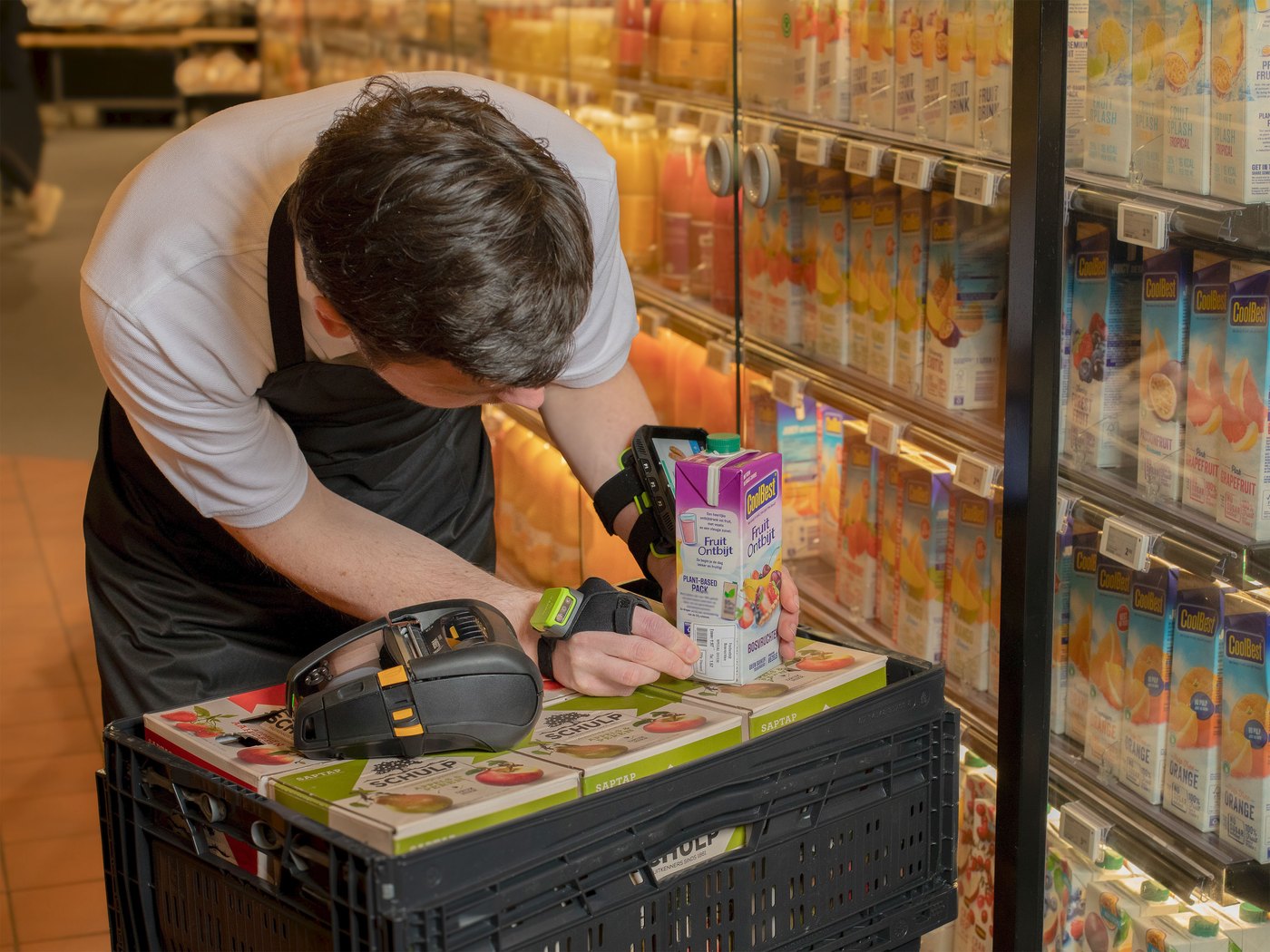
Choose a scanner, mobile computer or mobile printer by the work carried to the aisle
The hardware role follows the application and operator route. Confirm the actual interfaces, label media, network and permissions before recommending a model.
| Device setup | Best starting point | Application boundary | Test in store |
|---|---|---|---|
| Scanner plus workstation | Desk-side or counter-side review where the host screen owns the task | Scanner sends barcode input; the station displays quantity, exceptions and posting response | Field focus, symbologies, wrong-item response and user login |
| Mobile computer or PDA | Backroom-to-shelf tasks requiring on-screen work, quantity entry and exception handling | The installed app displays and updates tasks subject to system and network rules | Screen flow, Wi-Fi route, offline states, battery, charging and one-handed use |
| Mobile printer | Only where the refill creates an approved shelf, price, tote or temporary label action | The print app and template own data, approval and output | Media, print method, label size, placement, connectivity and reprint control |
For a deeper comparison, see Scanner vs Mobile Computer and the Retail Barcode Scanner Selection guide.
Standard replenishment flow
Eight control points take a refill from trigger to reconciliation
Screen names differ by platform, but the operational evidence and completion boundary should remain explicit.

| Step | Operator action | Required control | Completion boundary |
|---|---|---|---|
| 1. Trigger and prioritise | Open or accept an urgent or routine task | Rule, item, shelf, reason and urgency | One current task is actionable |
| 2. Check source stock | Review eligible backroom, reserve or transfer stock | Source location, state and open movements | The source is valid, not merely expected |
| 3. Assign | Release work to a named user or team | Role, device, area and time | Responsibility is visible |
| 4. Pick | Confirm source, item and actual quantity taken | Correct item, pack or unit and short-pick reason | Picked differs visibly from requested when necessary |
| 5. Confirm destination | Scan the item and shelf or location where required | Correct bay, item and active task | Wrong item or location cannot pass silently |
| 6. Fill and check | Place the approved quantity and review shelf capacity and ticket | Maximum display, residual stock and label state | Overfill and label mismatch remain exceptions |
| 7. Complete task | Submit quantity, reason and label action | User permission and application response | Saved, queued and posted remain distinct |
| 8. Reconcile | Review sales, transfers, returns and delayed updates | Source-of-truth movement and open exceptions | The accepted inventory response closes the move |
Pick, item, location and quantity
Capture the actual movement and compare it with the task
The worker should confirm the approved source, scan or select the item, then enter the quantity actually picked. At the sales floor, a second item or shelf-location confirmation may prevent the right quantity from reaching the wrong bay.

- Keep requested, picked, placed and residual quantities distinguishable.
- State whether quantity is each, inner, pack, case or another approved unit.
- Flag unknown barcodes, duplicate product identities and wrong pack levels.
- Use a short-pick reason when source stock is lower than the task expects.
- Do not let an item scan overwrite the required location or task context.
Shelf capacity and residual stock
Filling the shelf does not mean moving every unit from the backroom
Define the display maximum or other approved capacity rule. If the source pick exceeds available shelf capacity, record what was placed and what returns to reserve. Do not leave a cart, tote or temporary holding area outside the inventory movement history.

Shelf labels, price tickets and mobile printing
Separate product-identity mismatch from selling-ticket mismatch
A barcode mismatch means the scanned identity does not match the expected item or task. A price-label mismatch means the shelf ticket or displayed selling information needs review. They may occur together, but they follow different ownership and correction paths.

| Finding | Worker action | Owner before closure |
|---|---|---|
| Item barcode does not match task | Stop the fill and preserve scanned value, product and shelf | Item-master or task exception owner |
| Shelf price or description differs | Keep the stock and ticket states separate and request review | Pricing or shelf-label owner |
| Label missing or damaged | Use the approved template and reprint permission | Label-data and print-process owner |
| Temporary tote or transfer label required | Print only the approved identity and status | Transfer or store-operations owner |
| No label change needed | Complete replenishment without unnecessary printing | Task owner |


For label-production planning, see the Barcode Label Printer Guide.
Visible exception routing
Shortages, substitutions, damage, returns and transfers need named owners
Do not let aisle staff improvise a silent fix. Preserve the task, physical result and last trusted inventory state, then route the case under the store’s permission model.

| Exception | Evidence to preserve | Controlled response |
|---|---|---|
| Urgent gap but no source stock | Item, shelf, source check, time and open task | Short-fill, escalation or approved alternate source |
| Proposed substitution | Original item, substitute, shelf and requester | Use only the approved substitution rule and label review |
| Damaged or open stock | Quantity, condition, source and user | Quarantine or disposition; do not fill by default |
| Return awaiting decision | Return state and physical holding location | Keep out of available stock until authorised |
| Transfer not received or posted | Source, destination, dispatch and receipt states | Review ownership before using the quantity |
| Barcode or shelf-label mismatch | Scanned value, visible ticket, product and shelf | Separate identity and pricing correction routes |
In-flight sales, network and synchronization
Task completion and inventory posting are separate system states
Sales, returns, transfers and receipts can change the usable quantity while a refill is being picked. The store must define how those movements cross the task snapshot and how delayed updates are reconciled.

Network boundary
Some applications save locally, some queue selected actions and others block work without a connection. Show saved, queued, synchronized, rejected and posted states distinctly. Confirm the exact behaviour of the chosen POS, ERP or store-inventory application; do not promise automatic real-time updates across every environment.
- Preserve task, user, device, item, source, shelf and time through reconnect.
- Test duplicate submission, out-of-order updates and app restart.
- Define whether new sales reduce the open refill quantity or enter later reconciliation.
- Keep permissions active after reconnect and device handoff.
- Require review when a delayed task conflicts with a newer transfer, return or sale.
Common mistakes
A fast refill can still create the wrong inventory and shelf state
- Buying devices before defining the trigger. Hardware cannot decide which gap matters first.
- Treating expected stock as eligible stock. Open transfers, returns and damage can change availability.
- Scanning the item but not the required location. The right product can reach the wrong bay.
- Moving the suggested quantity without recording the actual pick. Short fills disappear from evidence.
- Ignoring shelf capacity. Residual stock becomes an untracked cart or tote.
- Using substitutions without authority. A convenient replacement can create pricing and identity errors.
- Combining barcode and price-label mismatches. Product identity and selling-ticket data need different owners.
- Calling a saved task synchronized. Only the accepted authoritative response closes the inventory movement.
Rollout checklist
Pilot the real backroom-to-shelf route, including failure paths
- Name the source of truth. Record which POS, ERP or store application owns the movement.
- Define triggers and priority. Separate urgent gaps from routine top-up.
- Map source and destination. Include backroom bins, reserve areas, shelves and temporary locations.
- Assign roles. Define who may release, pick, substitute, relabel, quarantine and close.
- Choose device roles. Confirm station, scanner, mobile computer and printing boundaries.
- Prepare identities. Check item, location, pack and required batch or expiry data.
- Set quantity and capacity rules. Preserve requested, picked, placed and residual quantities.
- Test exceptions. Include shortage, wrong item, wrong shelf, damage, return and label mismatch.
- Test network states. Include disconnect, queue, reconnect, rejection and duplicate protection.
- Reconcile the result. Verify the final inventory response before expanding the pilot.
Acceptance checks without invented metrics
Accept the workflow when normal and exception evidence stays clear
| Test | Evidence of acceptance |
|---|---|
| Trigger and priority | Urgent and routine tasks follow the approved rule and do not create duplicate active work. |
| Source stock | Available, held, damaged, returned and in-transfer quantities remain distinguishable. |
| User permissions | Only approved roles can release, substitute, relabel, quarantine and complete. |
| Item and location | Wrong or unknown scans remain visible exceptions instead of silent acceptance. |
| Quantity and capacity | Requested, picked, placed and residual quantities can be reconstructed. |
| Labels and prices | Identity mismatch and price-ticket mismatch follow their separate owners and approvals. |
| Network recovery | Saved, queued, synchronized, rejected and posted states remain visible after reconnect. |
| Inventory reconciliation | The accepted source-of-truth movement matches the completed task or leaves an assigned exception. |
Related guides and product example
Connect replenishment to stock control before choosing devices and labels
For stock-control context beyond the store refill task, start with Inventory and Warehouse Management.


Frequently asked questions
Retail replenishment workflow FAQ
Does scanning a product automatically update store inventory?
No. The scan provides identity input. The application must accept the task event, quantity and permissions, then post or synchronize the movement according to the selected system’s rules.
Should replenishment use a scanner or a PDA?
Use a scanner plus workstation when the host screen owns the task and the worker stays near it. Use a PDA or mobile computer when the worker needs tasks, quantity entry, locations and exceptions while moving between backroom and shelf.
When is mobile printing useful?
Only when replenishment creates an approved label action at the point of work, such as a shelf, price, tote or temporary transfer label. It is unnecessary when labels stay unchanged or printing remains central.
Can urgent shelf gaps bypass the normal task list?
Only if the business defines an urgent-gap rule, eligible users and reconciliation path. Preserve the reason, item, shelf, source check and resulting movement.
Can staff substitute another item when source stock is unavailable?
Only under an approved substitution rule. Confirm the relationship, shelf identity, price ticket, quantity and decision owner instead of allowing ad hoc swaps.
What should happen to damaged stock or customer returns?
Keep them outside normal available stock until the authorised disposition says they are saleable. Record the physical holding location and decision owner.
Can replenishment continue when the network is unavailable?
It depends on the selected application. Confirm what can be saved, queued or blocked offline and test reconnect, duplicate protection, permissions and delayed conflicts before rollout.
How is replenishment different from stocktake and warehouse receiving?
Replenishment moves eligible store stock to a selling location. Stocktake counts a defined population, while receiving accepts inbound goods into the organisation or store. Each needs its own scope, evidence and posting rules.
Plan the workflow before procurement
Bring your store route, task rules, labels and inventory system to a practical review
Easy Scan can help review scan points, device roles, mobile-printing needs, label conditions, exception routes and acceptance cases. Final integration and synchronization behaviour depend on the selected POS, ERP or store application and its configuration.