
Scanner and Mobile Computer Selection
Barcode Scanner vs Mobile Computer: Which Fits Warehouse, Retail and Logistics Workflows?
The choice between a barcode scanner and a mobile computer should not start with brand names or scan speed alone. Start with the workflow: does the user only need to input barcode data into a POS, ERP, WMS or computer field, or must the same device show tasks, accept quantity entry, handle exceptions and update business systems on the move? This guide helps Hong Kong warehouse, retail and logistics teams decide when a scanner is enough, and when a handheld terminal or PDA is the better fit.

Scanner may fit
When the scan only inputs data
Examples include POS checkout, packing-bench validation, receiving-desk entry or SKU scanning beside a PC. The device mainly reads the code while the host system handles the rest.

Mobile computer may fit
When the scan starts an app workflow
Examples include stocktake quantity entry, inventory lookup, picking, put-away, exception handling, photos and proof of delivery. Scanning is only the first step.

Map the workflow first
Do not use the product name as the requirement
The same scanning request may be simple keyboard input or a full WMS / ERP / POS process. List the scan points, data fields and exception steps before choosing hardware.
30-second answer
If the job is only barcode capture, a scanner is often enough; if the job must be completed on site, compare mobile computers
The simplest divider is whether the device only sends barcode data to another host, or whether it needs to carry the workflow by itself.
Scanning is an input action
- The user already has a POS terminal, PC, tablet or fixed workstation nearby.
- The scan only enters a barcode, SKU, membership code or shipment number into a field.
- The workflow stays at a checkout, packing bench, receiving desk or fixed validation point.
- The key checks are scan stability, ergonomics, interface, 1D / 2D, phone-screen QR reading and prefix or suffix behaviour.
Scanning is part of the work process
- The user moves away from a workstation across shelves, aisles, loading zones, stores or vehicles.
- After scanning, the user must view tasks, enter quantities, update status, select reasons, capture photos, confirm delivery or sync data.
- The workflow depends on WMS, ERP, POS, delivery, stocktaking or inventory apps running on the device.
- The key checks are screen, keypad or touch input, Wi-Fi / cellular, battery, ruggedness, cradles and device management.
Practical recommendation
If you are not sure, do not start with a model quotation. First list the scan location, what happens after the scan, which system receives the data, whether a screen is required and whether updates must be real-time. That will make the scanner versus mobile-computer decision much clearer.
Core comparison
What is the difference between a barcode scanner and a mobile computer?
Both can scan barcodes, but they play different roles. A barcode scanner is usually an input device. A mobile computer is a handheld work device that can run applications.
| Dimension | Barcode scanner | Mobile computer / PDA / handheld terminal |
|---|---|---|
| Main role | Reads 1D / 2D barcodes and inputs the data into a host, POS, computer or application field. | Scans, displays tasks, accepts data entry, runs apps and updates workflow status on the same device. |
| Typical location | Checkout counter, packing bench, receiving desk, fixed workstation or short-distance movement area. | Warehouse aisles, shelves, loading areas, retail back room, delivery route or field-service location. |
| System connection | Commonly USB, Bluetooth, wireless receiver or keyboard wedge input. POS / ERP / WMS field behaviour still needs to be checked. | Commonly connects through Android or enterprise apps, Wi-Fi, Bluetooth or cellular. App compatibility and login policy must be confirmed. |
| Manual input | Suitable for limited key actions or automatic Enter after scan. Less suitable for frequent status choices and exception handling. | Suitable for quantity entry, reason selection, detail lookup, location confirmation, photos and multi-step tasks. |
| Pre-purchase testing | Test barcode samples, phone screens, scan distance, interface, prefix, suffix, Enter behaviour and system fields. | Test app flow, Wi-Fi coverage, battery, user login, MDM, charging accessories, drop risk and operating environment. |
Scenario fit
How should warehouse, retail and logistics teams decide?
These are common decision directions, not fixed rules. The right answer still depends on existing systems, scan volume, network coverage and how staff actually work.

Warehouse receiving, put-away and picking
Mobile tasks often favour mobile computers
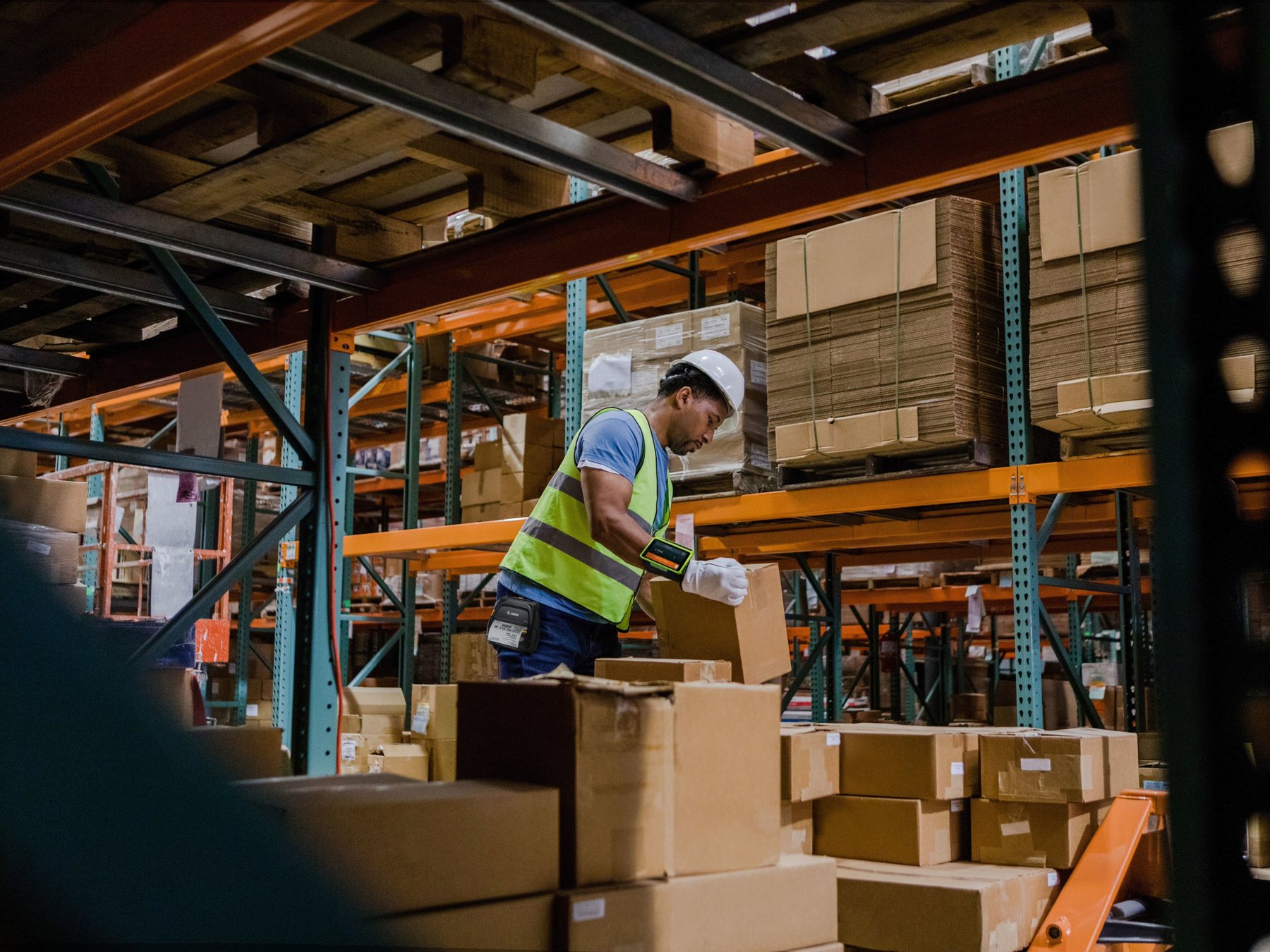
When staff move across aisles, update locations, pick items, confirm pallet or carton labels and enter quantities, the workflow usually needs a screen and app logic. Include mobile computers in the comparison.

Packing bench, receiving desk and fixed POS
A host-connected scanner is often the cleaner option
If a PC or POS screen is already available, and the user only needs to scan product codes, carton numbers or membership IDs, a barcode scanner is often more direct. Focus on scan performance, ergonomics, connection and input format.

Shipping, dispatch and proof of delivery
Photos, signatures and status updates point towards mobile computers
If the workflow includes delivery stops, failed-delivery reasons, signatures, photos or real-time updates, a scanner alone is usually not enough. Confirm what the delivery or logistics system supports.
PDA upgrade signals
When should you stop looking only at barcode scanners?
Many teams start with scanners for data entry, then find that staff still need to copy notes, return to a desk or report exceptions manually. Those are signals to compare PDAs or mobile computers.
The user needs stock, price or location data after the scan
If staff scan and then return to a PC to check information, the process can slow down and create errors. A mobile computer can keep lookup and scanning in the same place if the system and network support it.
Stocktaking and receiving are not only SKU capture
Stocktake, receiving, returns and picking discrepancies often need quantities, statuses or notes. If those inputs happen away from a desk, a device with a screen and keypad or touch input may be needed.
Put-away, picking and packing follow a sequence
A WMS may require location scan, item scan, quantity entry and carton confirmation in order. That kind of workflow needs app guidance, not only scanner input and staff memory.
Wrong item, short quantity, damage or missing stock
If exceptions are common, the device may need reason codes, notes, photos or status updates. Whether this is possible depends on the existing ERP / WMS / POS workflow.
Avoid the wrong direction
Common selection mistake: wireless scanning is not the same as mobile computing
A scanner can be wireless without being able to run the workflow. A mobile computer can scan, but it is not automatically the right choice for every low-volume checkout point. These are the mistakes that often cause the wrong purchase direction.
Treating a Bluetooth scanner as a PDA
A Bluetooth scanner is still mainly an input device and needs another host or app. If the user must view tasks and edit data, compare mobile computers.
Testing with only one clean barcode
Prepare real carton labels, shelf labels, phone QR codes and damaged or low-contrast codes. Test both scanners and mobile computers with the actual barcode samples.
Not checking how the system receives data
A code can be read but still fail in the POS, ERP or WMS field. Check characters, prefix, suffix, Enter behaviour, field focus, login rights and app support.
Ignoring Wi-Fi, battery and charging management
For mobile computers used in aisles, back rooms, loading areas or vehicles, coverage, battery strategy and charging location directly affect day-to-day usability.
Forcing one model across every workflow
Checkout, warehouse, delivery and stocktaking may need different devices. Separate the workflows before deciding whether to standardise on one platform.
Treating hardware as the complete system
A scanner or mobile computer does not automatically solve stock accuracy, real-time visibility or delivery tracking. Process design, barcode data, software and integration still matter.
Before enquiry
Prepare this checklist before comparing scanners and mobile computers
The clearer the workflow information, the easier it is to decide whether to use scanners, mobile computers or both in different parts of the operation.
| Information to prepare | Why it matters |
|---|---|
| Real barcode samples, including cartons, shelves, products, waybills and mobile QR codes | Confirms 1D / 2D, size, distance, reflection, damage and phone-screen reading requirements. |
| The next step after scanning, such as data entry, stock lookup, quantity entry, photos or signature | Shows whether the device only inputs data or needs to run the whole workflow. |
| Current systems and usage, such as POS, ERP, WMS, Excel or delivery software | Helps confirm whether keyboard wedge, Bluetooth, Android app, API or another integration route is realistic. |
| Use location and connectivity, such as checkout, shelves, cold storage, loading bay or vehicle | Affects scan distance, durability, Wi-Fi / cellular, battery and accessory requirements. |
| User count, shifts, shared-device usage, charging location and management requirements | Affects cradles, spare batteries, device management, permissions and long-term maintenance planning. |
How to describe the requirement
Start with one practical sentence: “In our warehouse / store / logistics workflow, we need to scan this type of barcode, then complete these steps in this system.” That is more useful than only asking for “a scanner”.


FAQ
Barcode scanner vs mobile computer FAQ
What is the main difference between a barcode scanner and a mobile computer?
The main difference is role. A barcode scanner mainly reads codes and inputs data. A mobile computer can scan, display tasks, run apps, accept data entry and update workflow status on the same device.
If we only scan product barcodes at POS, do we need a mobile computer?
Usually not. If the POS screen is already at the counter and staff only scan product or membership codes, a barcode scanner is usually more direct. Compare mobile computers only if staff need to leave the counter for stock lookup, replenishment or mobile app tasks.
Should warehouse stocktaking use scanners or PDAs?
It depends on the stocktaking method. If staff scan codes beside a fixed computer into a list, a scanner may be enough. If staff need live lookup, quantity entry, location confirmation and WMS / ERP synchronisation across shelves or aisles, a PDA or mobile computer is usually more suitable.
Is a wireless barcode scanner the same as a mobile computer?
No. A wireless barcode scanner is usually still an input device, just without a cable to the host. A mobile computer has a screen, operating system and application capability for more on-site workflow steps.
Is a mobile computer always better than a barcode scanner?
No. If the workflow is fixed-position barcode input, a barcode scanner may be simpler and more appropriate. A mobile computer is better when the workflow needs an app, screen, on-site entry, live lookup, mobility and multi-step tasks.
What should we prepare before contacting Easy Scan?
Prepare barcode samples, use locations, the steps after scanning, current POS / ERP / WMS or other systems, user count, network conditions and whether a screen or app is required. These details help decide whether to use scanners, mobile computers or both.
Next step
Need to compare barcode scanners, PDAs or mobile computers?
Share your workflow, barcode samples and current systems with Easy Scan. We can help narrow suitable device directions for Hong Kong warehouse, retail, logistics or store operations.